





Nice to meet you again, guys!
Some resources for you: Magento plugins and Magento 2 POS plugin.
As we all know, the beta version of Magento 2 was officially launched on 18th December, so we are now one step closer to this upgrade.
If you have already tried installing the alpha version, you’ll find that there are some little changes in this latest one. Let’s check!
Install Magento on Localhost
1. Install xampp
Download here with the following condition and requirements:
Use the following table to verify you have the correct prerequisites to install the Magento software.
Table
2. Install composer:
https://getcomposer.org/doc/00-intro.md
a. Download Composer-Setup.exe and install on local
b. Run file Composer-Setup.exe
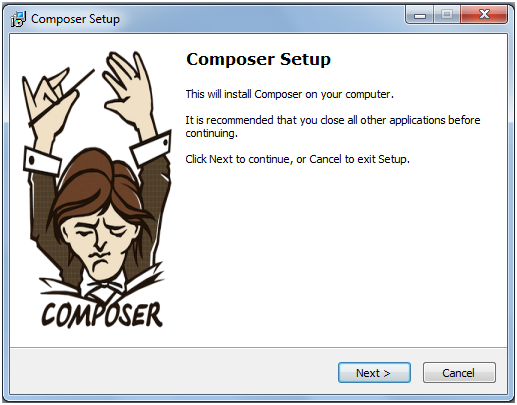
>> Choose Next to continue
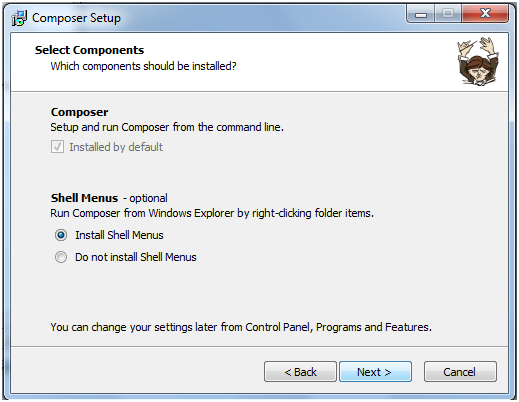
>> Choose Next to continue
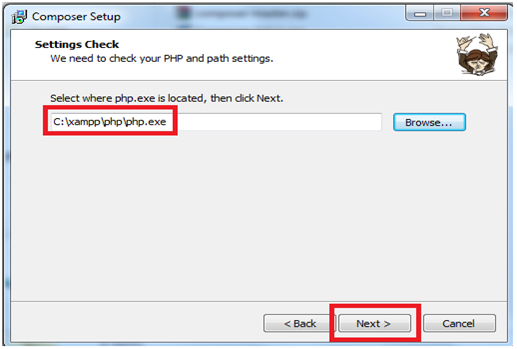
>> Choose the file path php.exe with xampp to be C:\xampp\php\php.exe and click on Next button
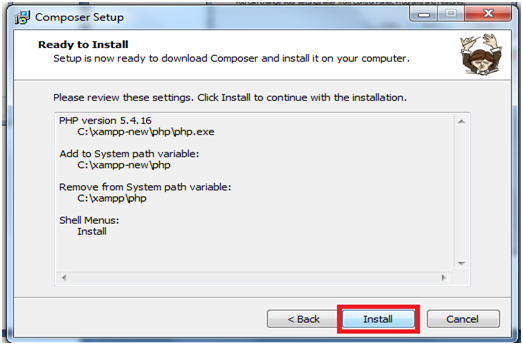
>> Choose Install
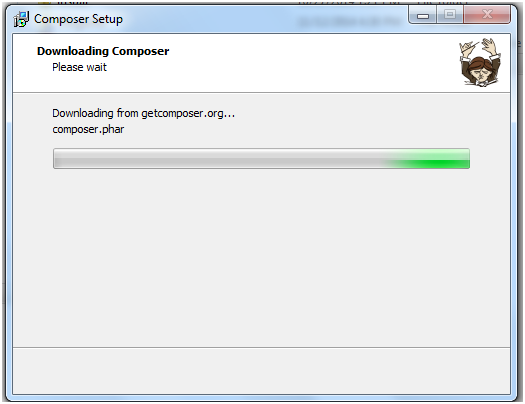
>> Then, please wait
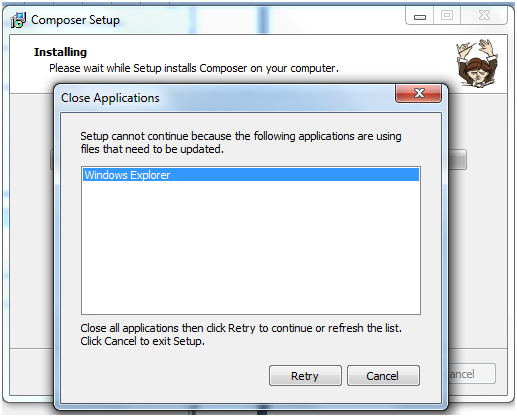
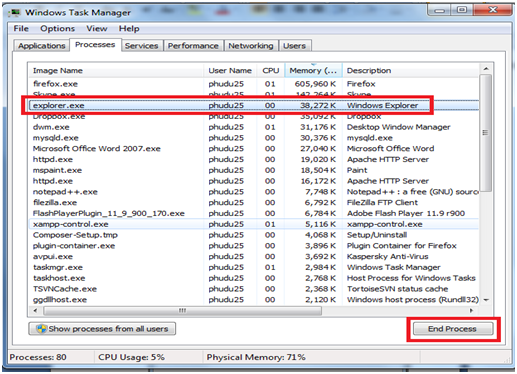
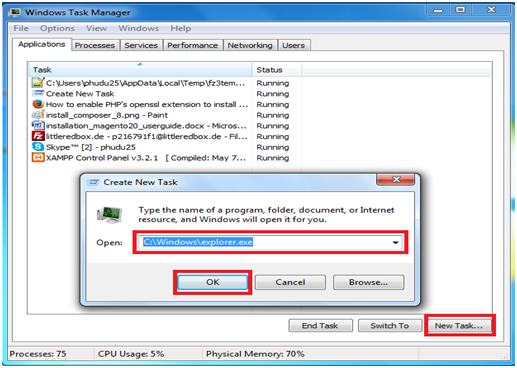
>> If you see this error, you can use task manager to close windows explorer, then hit Retry to continue
>> You will see the following picture when completing Composer setup:
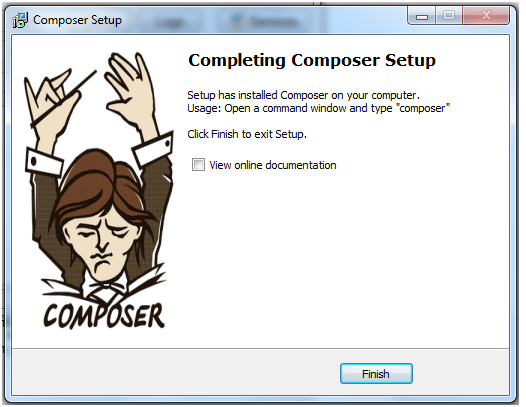
>> You will see the following picture when completing Composer setup:
>> Re-run Windows Explorer:
3. Install Magento 2.0
Setup version is 0.42.0-beta1: https://drive.google.com/file/d/0B9BrisTMtKNad1pGRExxOWJUVDA/view?usp=sharing
Or download the latest version at https://github.com/magento/magento2
Extract the source code in the web folder.
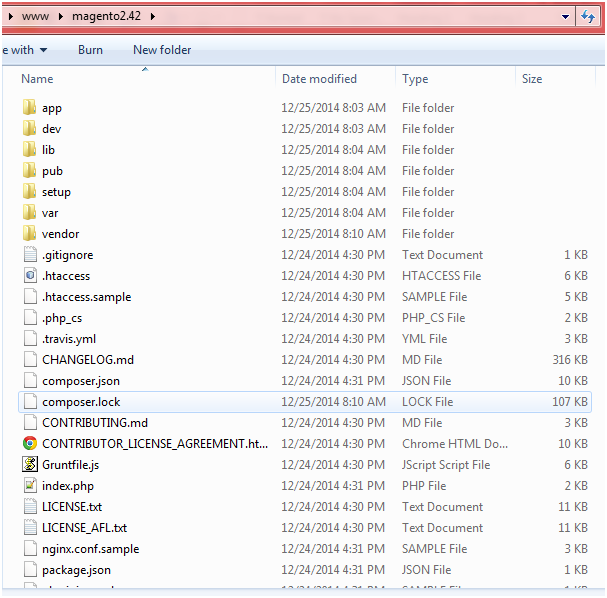
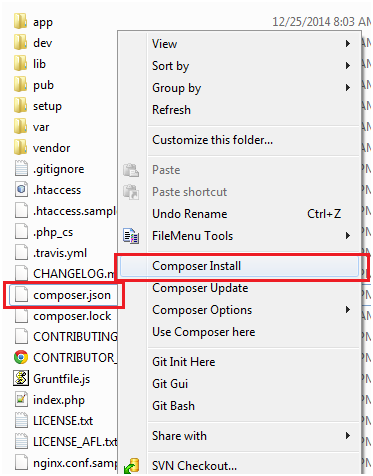
Right click on composer.json to run Composer Install
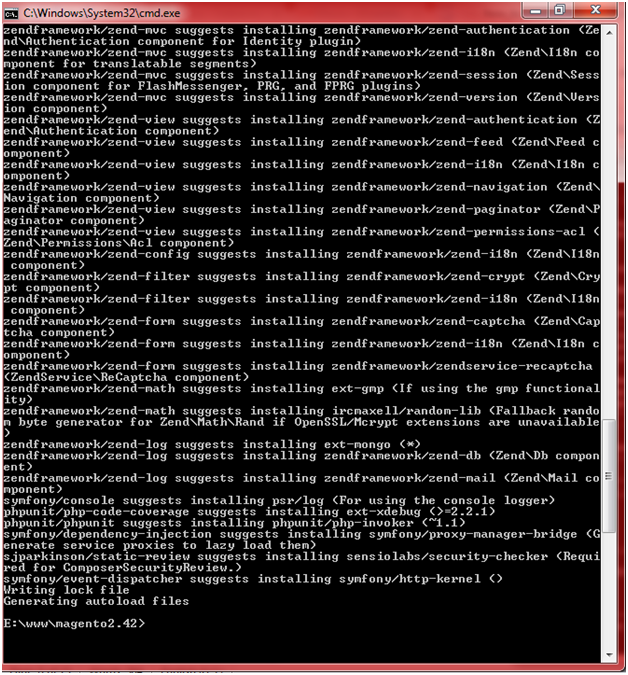
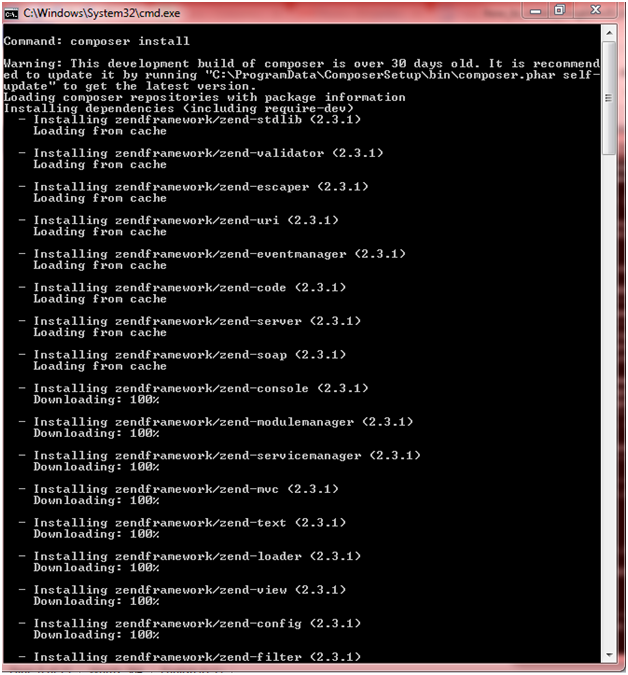
>> Here comes the cmd screen, you should wait for a few minutes
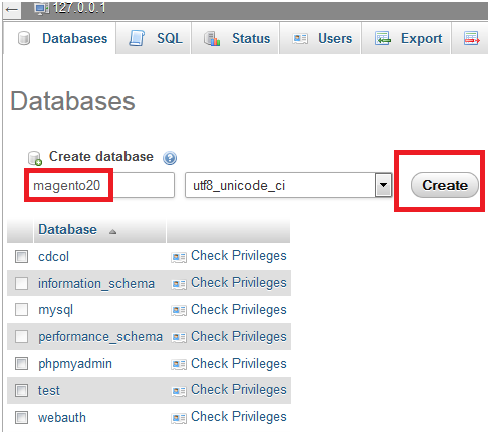
>> Log in to mysql to create database
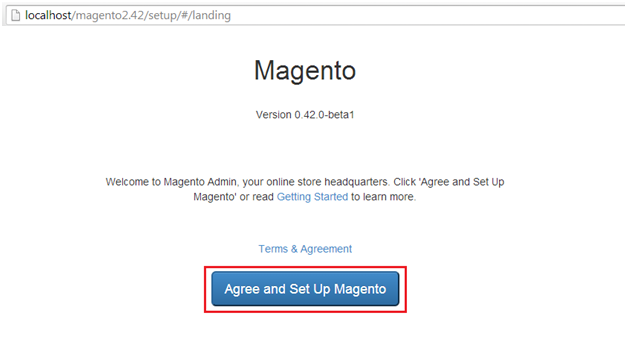
>> Run the link localhost/magento20/ on browser to start installing Magento 2.0
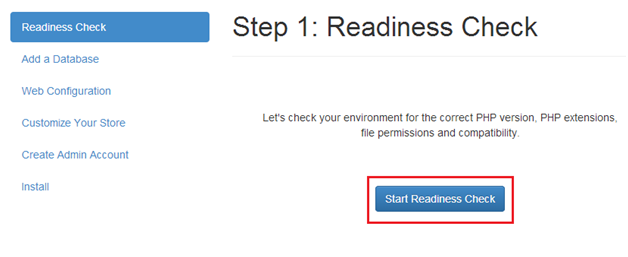
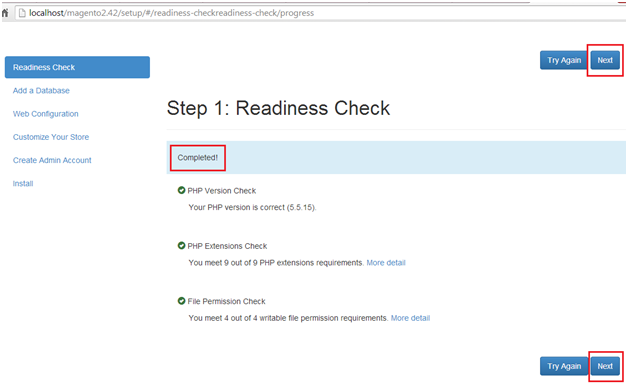
>> Check server
>> Complete and Next
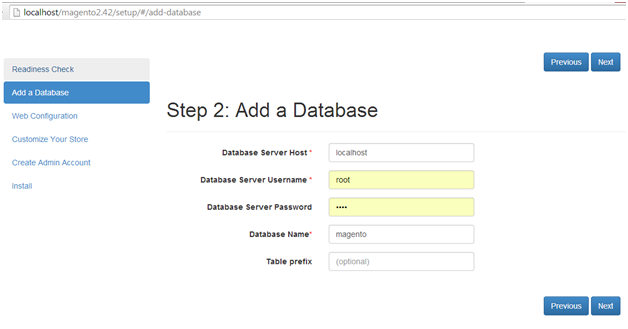
>> Fill in database information and Next
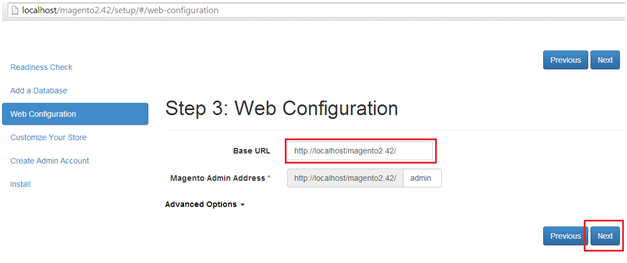
>> Fill in URL of website and Next
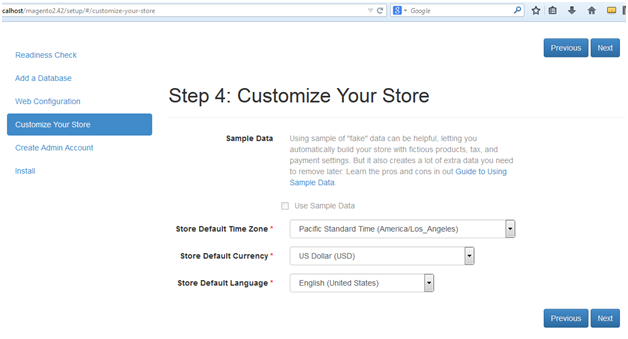
>> Set timezone, currency, language and Next
>> Fill in the account information and Next
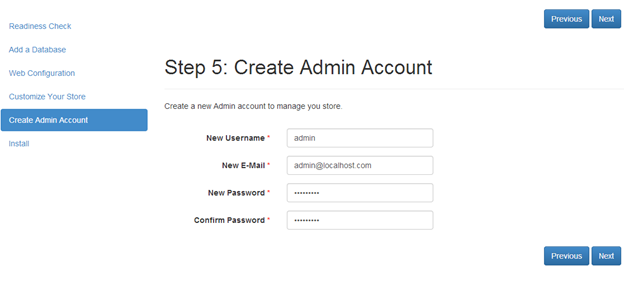
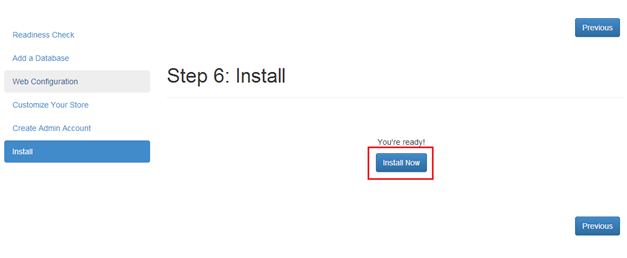
>> Click on Install Now
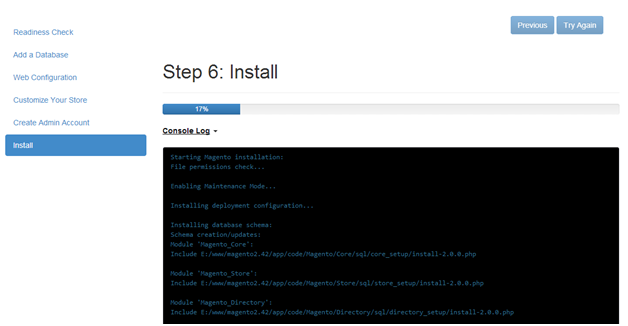
>> Please wait while installation is running
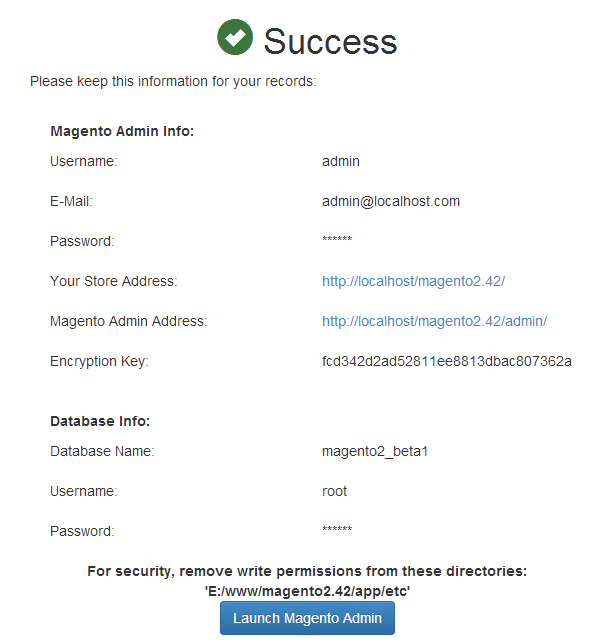
>> Finish installation
II. Install Magento 2 on the server
1. Download the source code
Move to the web folder
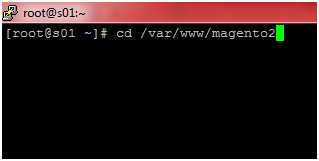
Use git to clone the source code
git clone –b 0.42.0-beta1 https://github.com/magento/magento2.git
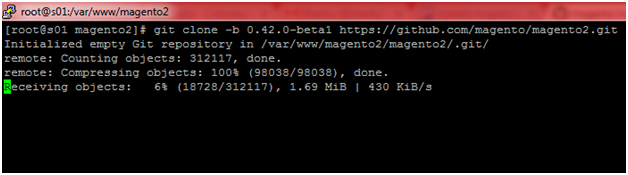
Move to the folder the source code that has been cloned to download composer tool

Run composer function

2. Log in to MySQL to create a database
3. Run the Magento link to install similarly in localhost
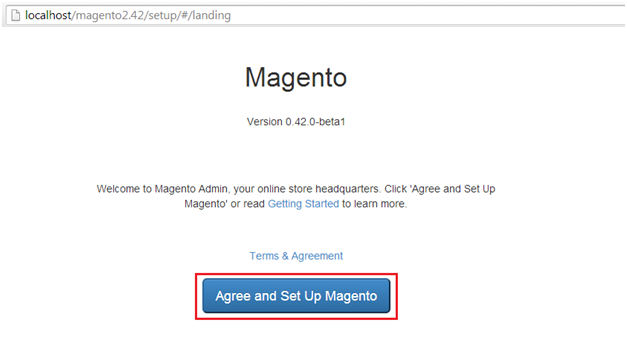
Check the installation
Finish it? Do you have any questions about the beta version installation guide? Tell us your ideas by leaving a comment below.